November 23, 2026 · 8 min read · Thomas Osayi
How to update my own website after a developer builds it
How to update your own website after it is built: CMS and admin options, what is safe to edit yourself (text, photos, hours, menus, posts) and when to call the developer.
Near the end of a build, one question nearly always comes up in some form: "Can I change this myself later?" They want to fix a typo on a Sunday night, swap a photo, update holiday hours or post an announcement without sending an email and waiting.
The answer depends on decisions made early in the project, not at the end. A website can be built so the owner edits the things that change often, or so every change goes through the developer. Neither is wrong, but you should choose on purpose. This post covers how owners edit a site after it is built, which tools make that possible, what is safe to touch, and when to pick up the phone.
Can you update your own website after a developer builds it?
Yes, as long as the site was built with a CMS or admin screen for the content you want to change.
A CMS (content management system) is a login where you edit content through forms instead of code. On a builder like Squarespace, Wix, Webflow or Framer, the editor is built in. On a WordPress site, it is the WordPress dashboard. On a custom-coded site, such as the Next.js sites I build, the developer either connects a headless CMS or builds a small admin screen.
If none of that was set up, the content is written into the code. That is not a flaw for content that rarely changes, but it means a typo fix is a developer task. Ask your developer one question: "Which parts of the site can I edit myself, and where do I log in?" If the answer is "none", decide whether that is acceptable before you need it.
What should you be able to edit yourself?
You should be able to edit anything that changes more often than a few times a year, and nothing that could quietly break how the site takes leads or payments.
For most small businesses, the owner-editable list looks like this:
- Business hours and holiday closures.
- Menu items, services and prices.
- Photos in galleries and on service pages.
- Team members and bios.
- Blog posts, news and announcements.
- Testimonials you have permission to share.
- Short promotional banners, such as a seasonal offer.
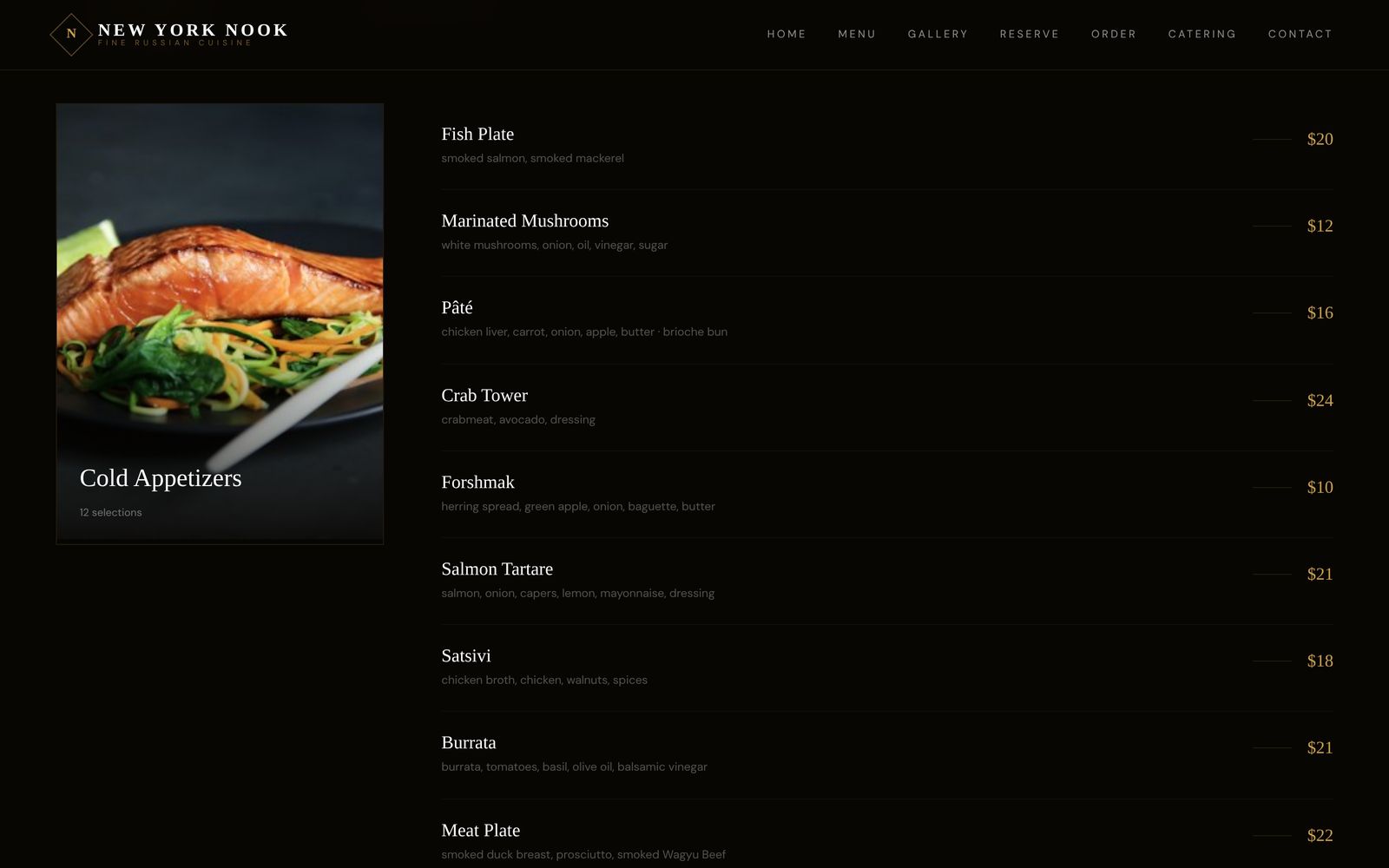
Content like this, a menu with prices, is exactly the kind of section owners want to keep current:
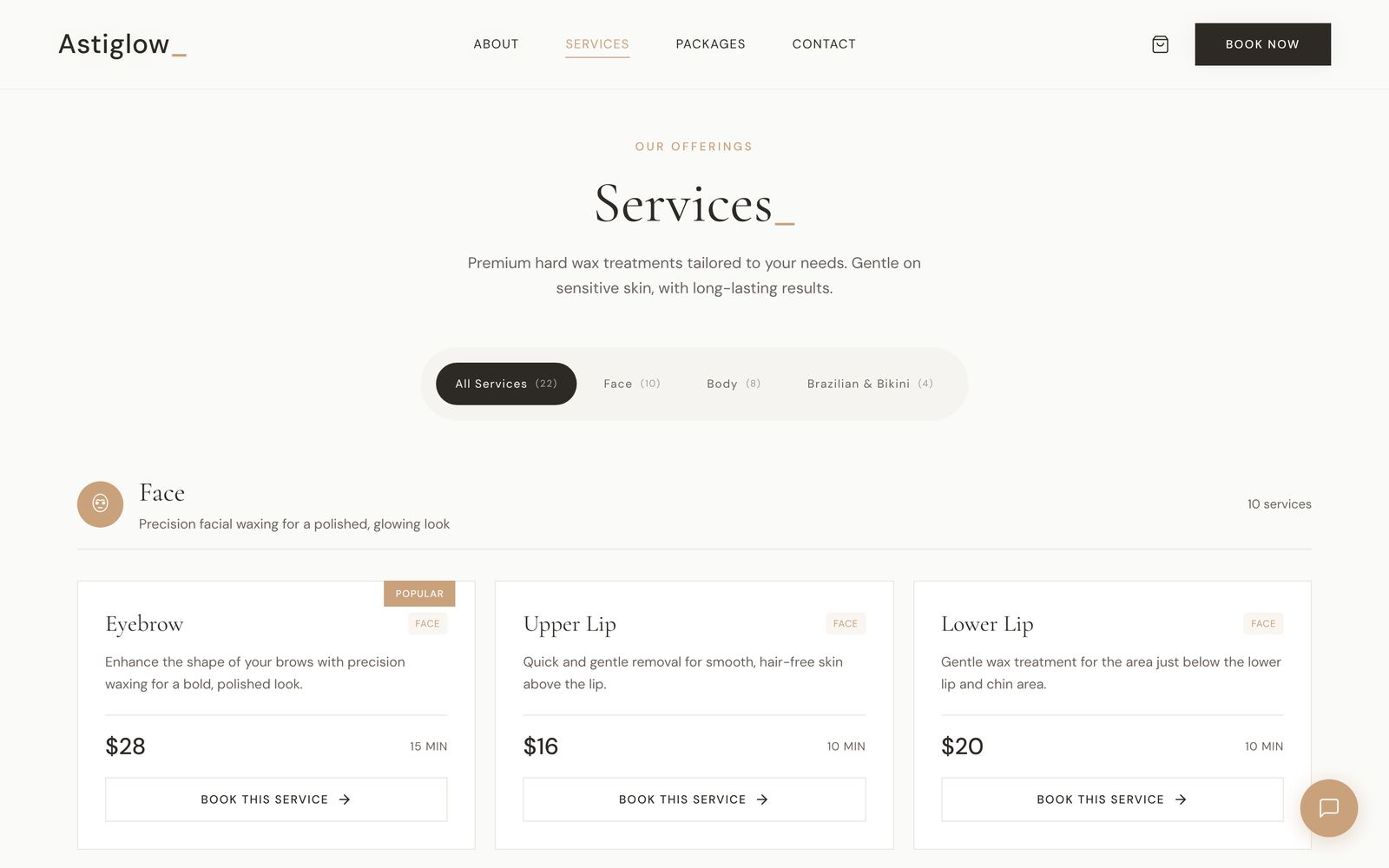
And a service list with prices and durations, which changes whenever prices do:
Make this list before the build starts. It tells the developer what to put in the CMS and what to leave in code, and it is often the biggest factor in whether you need a Business Site or a Full Custom Build.
What are the options for a CMS or admin tools?
The main options are the editor built into a website builder, WordPress, a headless CMS connected to a custom site, or a custom admin screen.
Built-in builder editors
On Webflow and Framer, you can give someone an editing seat that changes content without touching layouts. At the time of writing, Webflow lists limited seats at $15 a month billed yearly, and Framer lists content editor seats at $10 each. Easy to learn, but the editing rules are the platform's.
WordPress
The dashboard is familiar to many people and has roles for editors and authors. The trade-off is maintenance: plugins and themes need updates, and a careless plugin install can break a site.
Headless CMS
A service such as Sanity gives you a separate editing studio. Sanity describes its Studio as an editing interface generated from content structures the developer defines, so the fields match your business: a menu item gets a name, description, price and photo, nothing else. This suits blogs, menus and service lists that change often.
Custom admin screen
For a few specific things, such as hours, a banner and a list of specials, a small admin page on the site's own database is often simpler than a whole CMS. You log in, change a field, save.
My post on headless CMS for a small business compares the CMS options in more depth.
Is an admin dashboard the same as a CMS?
Not always: an admin dashboard can be for running the business, and content editing is a separate question.
LACEUP is a good example from my own work. I built the basketball apparel storefront with a private Firebase admin where the owner signs in to see visits, product views and adds to bag, read contact form messages and export newsletter subscribers. The product catalog itself lives in one typed file in the code, so filters, product pages and reports always read from the same data, and adding a product goes through the developer. That was a deliberate choice for a single launch drop. A brand adding products every week would want product editing in the admin too.
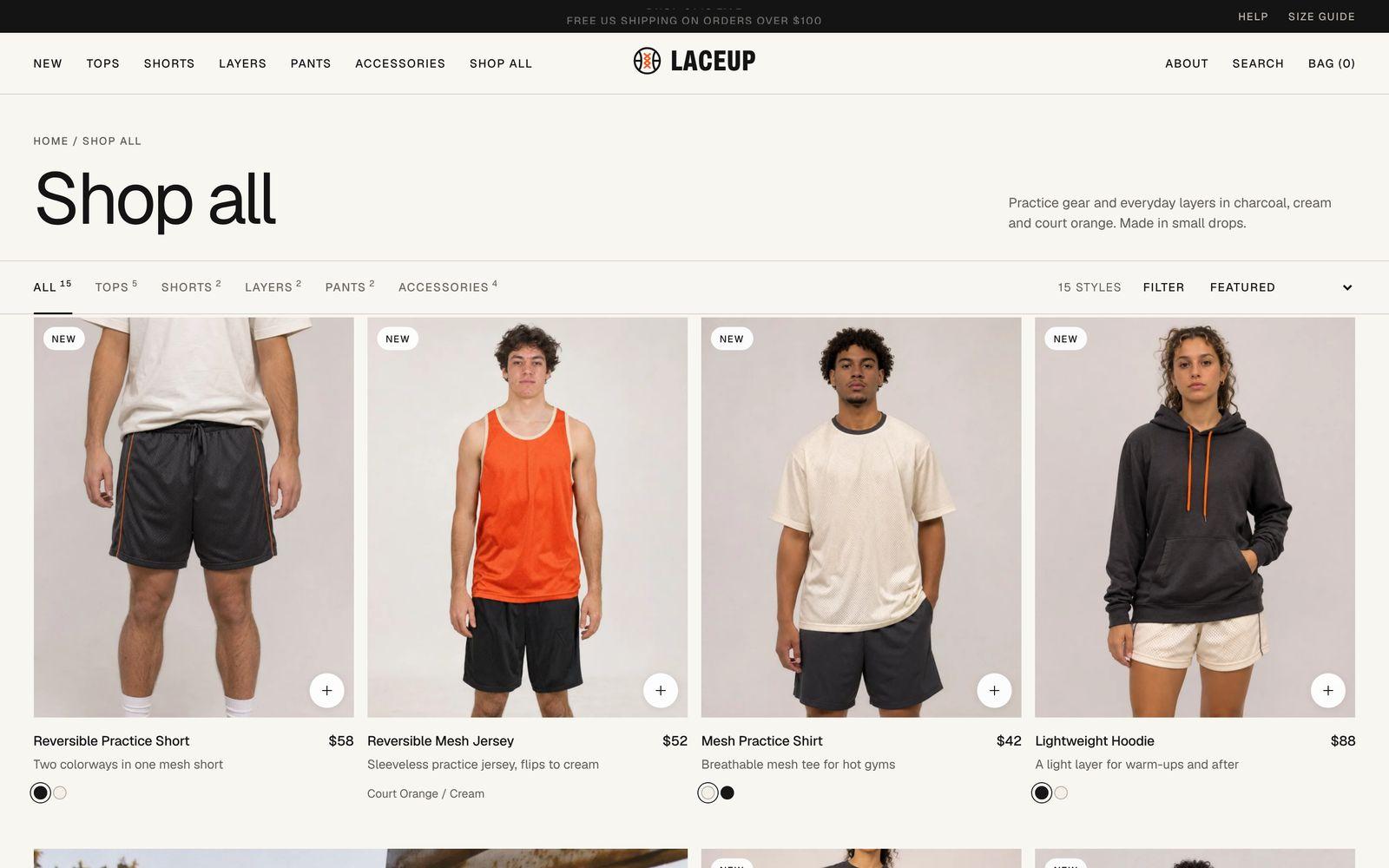
When a developer says "you will have an admin", ask what you can do in it. Reading messages and editing content are different features.
What is safe to edit, and what should you leave alone?
Content is safe to edit; structure, forms, payments, tracking and settings are not.
Usually safe
- Words on a page, as long as you keep headings short and do not delete a whole section.
- Photos, if you replace them with images of a similar shape and reasonable file size.
- Hours, prices and menu items, through the fields provided.
- Blog posts, including titles, text and featured images.
Leave to the developer
- Page layouts, navigation menus and footer links.
- Booking, quote and contact forms, including where they send submissions.
- Payment settings and checkout.
- Tracking codes for Google Analytics, ads or pixels.
- Domain, DNS and email settings.
- Page addresses (URLs). Changing one without a redirect can lose the page's Google rankings.
How do you edit photos, hours, menus and blog posts without breaking things?
Make small changes, preview before publishing, and keep the website and your Google Business Profile in sync.
- Photos: images straight from a phone are often several megabytes. Unless your CMS resizes them automatically, shrink them to roughly the width the site shows them (around 2,000 pixels wide is plenty for a full-width image) and compress them first. The web.dev guide on serving responsive images explains why oversized images slow pages down.
- Hours: change the website and your Google Business Profile at the same time. Google Business Profile has a special hours feature for holidays and events, so you do not have to change your regular hours.
- Menus and prices: edit the item, not the layout. If you need a new category, ask the developer to add it once so the design stays consistent.
- Blog posts: write a clear title, add one good image, and preview on your phone before publishing.
After any edit, open the page on your phone. Most visitors will see it there first.
How do you learn the editing tools without breaking anything?
Ask for one short training session at handoff, a written cheat sheet, and a safe way to practice before you edit the live site.
The training does not need to be long. What matters is that it covers the exact screens you will use, in the order you will use them. A good handoff includes:
- A recorded walkthrough of each edit you listed before the build: changing hours, adding a menu item, replacing a photo, publishing a post.
- A one-page cheat sheet with the login address, which fields do what, and the size photos should be.
- Your own login with your own email, not a shared password, so access can be removed cleanly if staff change.
- A draft or preview mode, if the CMS has one, so you can see a change before visitors do.
- A clear note of what to do if something looks wrong, including who to contact and how fast they usually reply.
Practice the first few edits with the developer still on hand, ideally in the first week after launch. Questions come up when you actually use the tools, not during a demo. After two or three real edits, most owners stop worrying about breaking things, because they have seen that content edits stay inside the fields they were given.
If more than one person will edit the site, decide who owns which section. Two people editing the same menu on the same day is how prices end up wrong.
When should you call the developer?
Call the developer when a change affects how the site works rather than what it says, or when something breaks.
Good reasons to call:
- A form stops sending, or leads go quiet suddenly.
- You want a new page type, section or feature.
- Something looks wrong on mobile after an edit.
- You need a page address changed or a redirect added.
- You want to change payment, booking or tracking setup.
- The site is slow and you cannot see why.
If you do not have an ongoing arrangement, small fixes are often quick. My post on what website maintenance costs explains the common ways to keep a developer on call.
A worked example: a cafe that edits its own site
Here is an illustration with a made-up business. A cafe updates its seasonal drinks every month, closes for a few holidays, and posts events twice a month. It does not change its layout.
Before the build, the owner lists those three needs. The developer builds a custom site with a small admin: a seasonal menu list (name, description, price, photo), an hours panel with holiday overrides, and a simple events list. The owner learns all three screens in one short session.
Every month, the owner updates the drinks in a few minutes and sets holiday hours on the website and on Google at the same time. When the cafe adds catering, the owner calls the developer, because that means a new page and a quote form.
The bottom line
Updating your own website is easy when the site was built for it. Decide up front which content you will change, make sure your developer gives you a CMS or admin screen for exactly those things, and learn the few screens you will use. Edit text, photos, hours, menus and posts yourself; leave layouts, forms, payments, tracking and settings to the developer. A site you can keep current yourself stays accurate, and an accurate site keeps earning trust.
Questions, answered in one line
Can I edit a custom-coded website myself?
Yes, if the developer connected a CMS or built an admin screen for the content you change, otherwise every edit has to go through the developer.
What is safe to edit on my website without a developer?
Text, photos, hours, menu items, prices, team bios and blog posts are usually safe in a CMS, while layout, navigation, forms, payments and tracking codes are best left to the developer.
What CMS is best for a small business owner?
The best CMS is the simplest one that covers what you actually change, which for many businesses is a short admin screen rather than a full content platform.
Why do my photos make my website slow after I upload them?
Photos straight from a phone or camera are often several megabytes, so resize them to the width the site displays and compress them before uploading unless your CMS does that for you.
Does Thomas Osayi build sites the owner can edit?
Yes, the Full Custom Build from Thomas Osayi starts from $1,200, takes about 21 days and includes CMS or admin tools for the content the owner changes.
Sources
- Sanity Studio Sanity
- How to set special hours Google Business Profile Help
- Serve responsive images web.dev
- Pricing Webflow
- Pricing Framer
Related articles
- How much does a restaurant website cost in 2026?
- How to take restaurant orders online without third-party fees
- Toast vs Squarespace vs a custom website for restaurants
- Google Business Profile vs website: do you need both?
Custom Next.js websites for businesses
Custom Next.js websites for small businesses, clinics, restaurants and startups. Fast, SEO-ready, built from scratch with booking, ordering or quote tools. Based in Los Angeles.
See the service