SaaS · Field operations
FieldOps
FieldOps is a job scheduling app for field teams: jobs sync to Outlook Calendar, documents stay organized and a contact directory builds itself from each job.
- Next.js
- Firebase Auth
- Firestore
- Vercel
- Outlook Calendar sync
Live: fieldopapp.com
The problem
A field team lives in two places at once. The office plans the work, and the people doing it are out at a site, reading their calendar on a phone between jobs. When the schedule sits in one tool and the calendar sits in another, someone has to copy every job across by hand, and the copy is where things go wrong. A job gets moved in the planner and not in the calendar, an address is typed twice and differently, and the paperwork for the job lives in an email thread nobody can find.
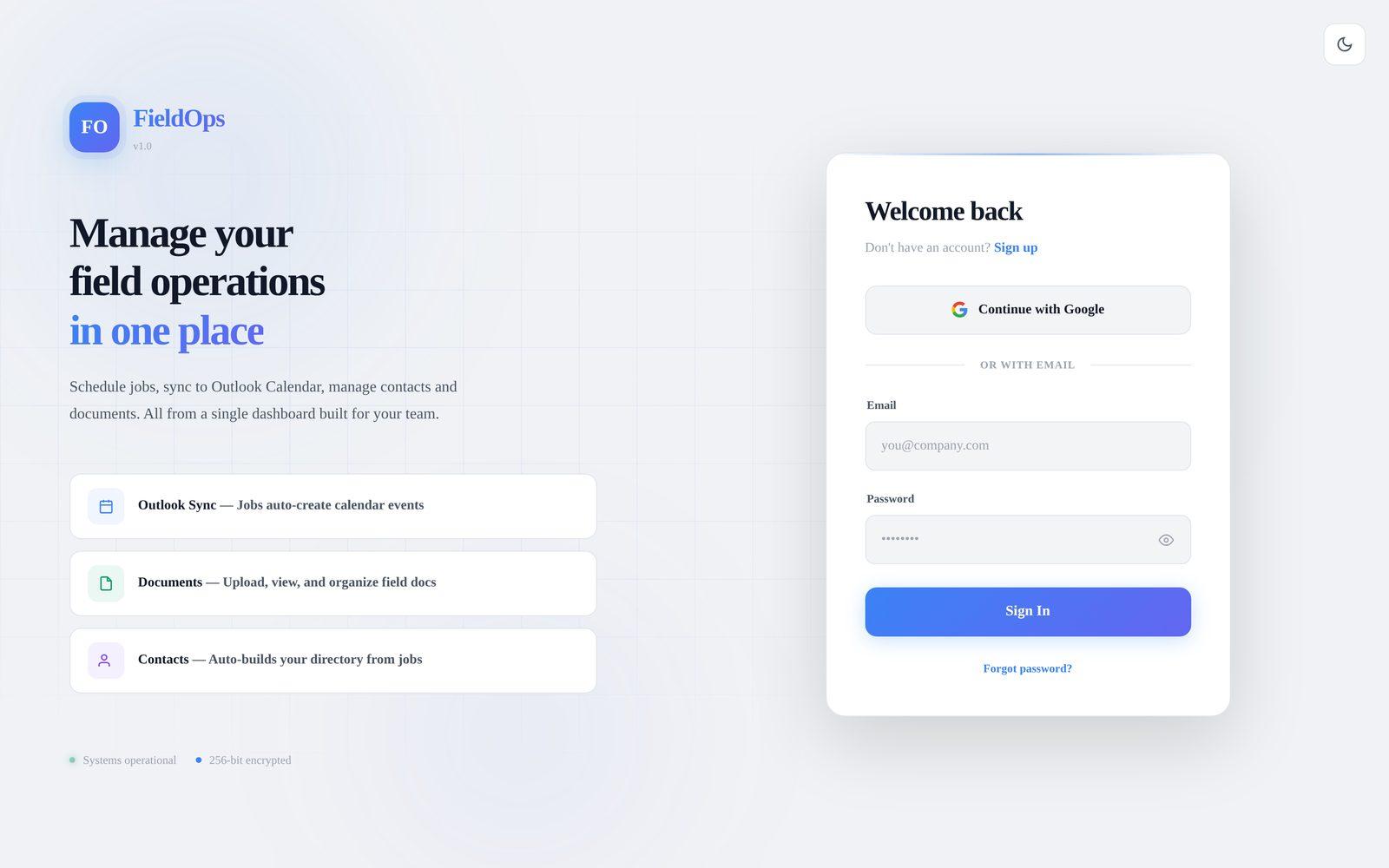
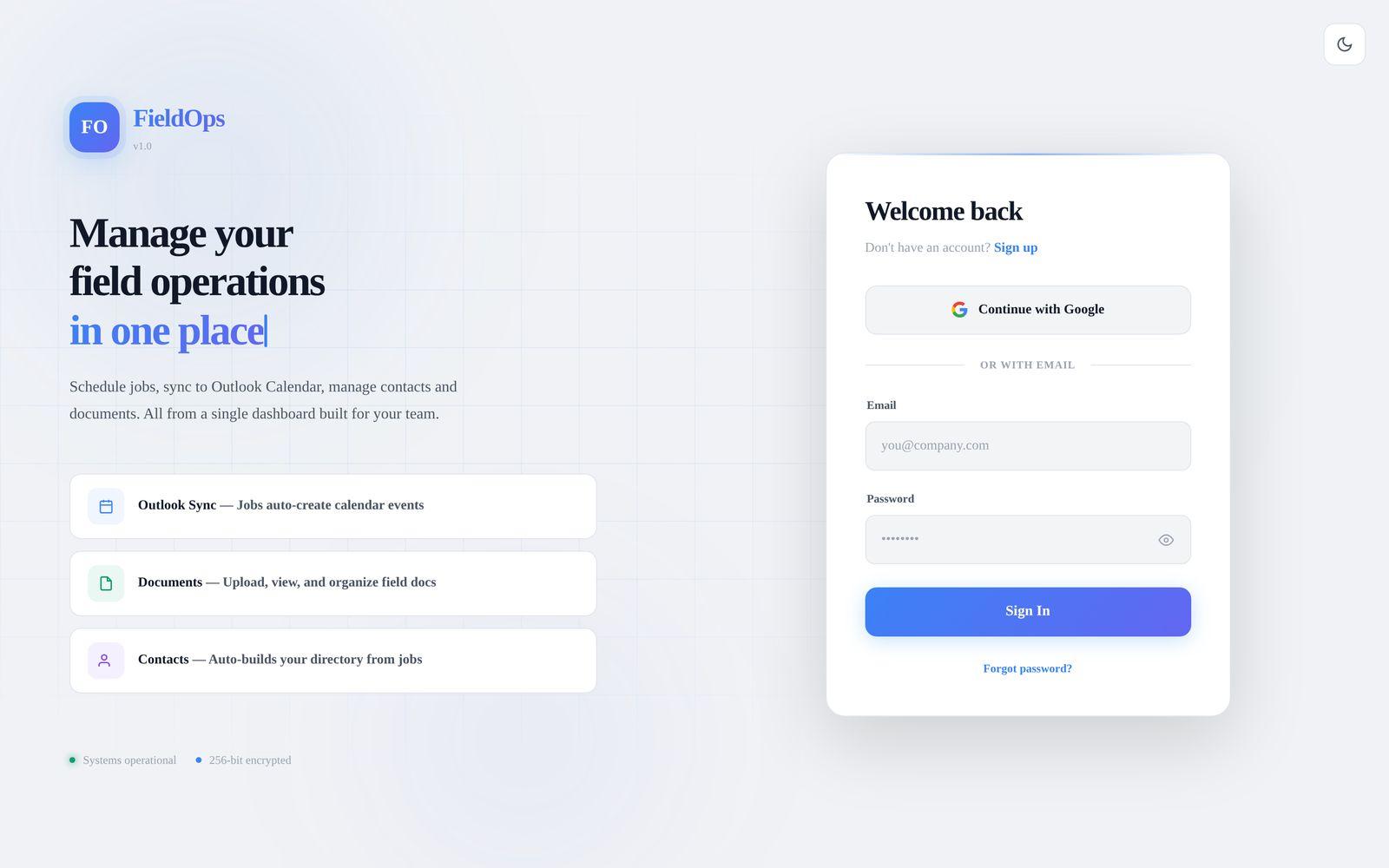
FieldOps is my answer to that. It is a job scheduling app for field teams, and the line on its sign-in page says what it is for: manage your field operations in one place. Jobs are scheduled in FieldOps, synced to Outlook Calendar, and the contacts and documents that belong to each job sit next to it in a single dashboard.
This case study sticks to what the app does and the decisions those features imply. The app sits behind a sign-in, so I am not going to put numbers on it that a visitor cannot check.
What a field team needs from a scheduling tool
Before writing any code I listed the jobs the tool has to do, because a scheduler that covers four of them sends the team back to a spreadsheet for the fifth.
- A place to create and schedule jobs
- A calendar the crew already checks, kept in step with that schedule
- Somewhere for the documents that belong to each job
- A directory of the people and companies the team works with
- A sign-in that does not become its own support problem
The second item decided the rest. Most teams that would use FieldOps already run their day out of Outlook. Asking them to check a second calendar would fail, so the calendar had to stay where it was and FieldOps had to feed it.
How I approached it
The job is the center of the data model. Everything else in FieldOps hangs off a job: the calendar event it creates, the documents attached to it and the contacts named on it.
That choice is what lets the app do work for the team instead of asking the team to do work for the app. If the job record holds the date, the place and the people, then the calendar event and the contact entry can be produced from it, rather than typed in again somewhere else. The rule I worked to was simple: the team enters a fact once, on the job, and every other view reads it from there.
What I built
Job scheduling
Jobs are created and scheduled from one dashboard. The schedule is the source of truth for the rest of the app, which is why the other features below are described in terms of what happens when a job is saved.
Outlook Calendar sync
The sign-in page puts it plainly: jobs auto-create calendar events. When a job is scheduled, FieldOps creates the matching event in Outlook Calendar, so the crew sees the job in the calendar they already use, on whatever device they already use it on.
The design question with any calendar sync is which side owns the data. In FieldOps the job owns it. The calendar event is a copy produced from the job, not a second record that someone edits separately. That direction matters, because two systems that both think they are the original will eventually disagree, and the person who finds out is the one standing at the wrong address.
Documents
Field work comes with paperwork. FieldOps lets the team upload, view and organize field documents inside the app, so the file for a job is found from the job and not from an inbox search.
Contacts that build themselves
The contacts feature is the one I like most, because it removes a chore instead of adding a screen. FieldOps auto builds the team's directory from its jobs. The people and companies named on jobs become entries in the directory, so the contact list grows as a side effect of scheduling work, without anyone maintaining it as a separate task.
Sign-in
Users sign in with Google or with an email and password, and the email path has a password reset. Offering Google sign-in means a team member can get in with an account they already have, which is one less password for a crew lead to forget on a job site.
Technical decisions and why
I confirmed the stack from the public sign-in page itself, not from memory.
- Next.js on Vercel. The app is a Next.js project served from Vercel. One project holds the pages and the server code, and the server side is where anything that talks to another company's calendar belongs, because the keys for that connection should never reach the browser.
- Firebase Auth. Sign-in runs on Firebase Authentication, with its Google provider for the Google button and email and password for everyone else. Authentication is a solved problem, and building my own would add risk without adding anything a user would notice.
- Firestore. The app data lives in Cloud Firestore. Jobs, documents and contacts are a good fit for a document database, and Firestore security rules let access be enforced where the data lives rather than only in the interface.
- One direction of sync. The job creates the calendar event, not the other way round. Keeping the flow one way is what keeps the two sides from fighting over which version is correct.
What the visible features say about the product
Every feature on that sign-in page is the same idea applied to a different chore. The calendar event comes from the job. The directory comes from the job. The documents are found from the job. None of them asks the team for a new habit. They take something the team was already doing by hand and do it as a result of scheduling the work.
That is the test I would apply to any feature request for a tool like this. If a feature needs the team to type something they have already typed somewhere else, it is probably a copy waiting to go out of date.
What I would tell someone planning a similar tool
Find the calendar your users already live in and feed it. Do not ask a field crew to adopt a new one.
Pick one owner for every piece of data. When two systems both hold the schedule, decide which one is the original and make the other a copy.
Look for chores that can become side effects. A directory that fills itself from jobs is worth more than a directory screen nobody keeps up to date.
Keep third party connections on the server. Calendar access is sensitive, and the browser is the wrong place for it.
If you are planning a tool like this, a first version of one workflow is the place to start, and the SaaS MVP development page explains how I scope that.
The bottom line
FieldOps puts a field team's jobs, calendar, documents and contacts behind one sign-in, and it does it by treating the job as the single source that everything else is built from. Jobs create their own Outlook events, contacts collect themselves from the work, and the team enters each fact once.
Need something like this?
I build SaaS MVPs and full-stack web apps in Next.js, TypeScript and Firebase or Postgres: auth, dashboards, payments, roles and admin tools. Founder of SQWAD.
SaaS MVP and full-stack web app development