November 22, 2026 · 8 min read · Thomas Osayi
How to build a client portal: roles, documents, messaging, scheduling and security
What a custom client portal needs: roles and permissions, document uploads, messaging, scheduling, status tracking and security, with costs and real examples.
Client portals usually start as an email problem. The team spends hours answering "did you get my file?", "where is my order?" and "can we move Thursday?" Each answer is easy, but there are dozens a day, scattered across inboxes and text threads. A portal turns those questions into something the client can check alone.
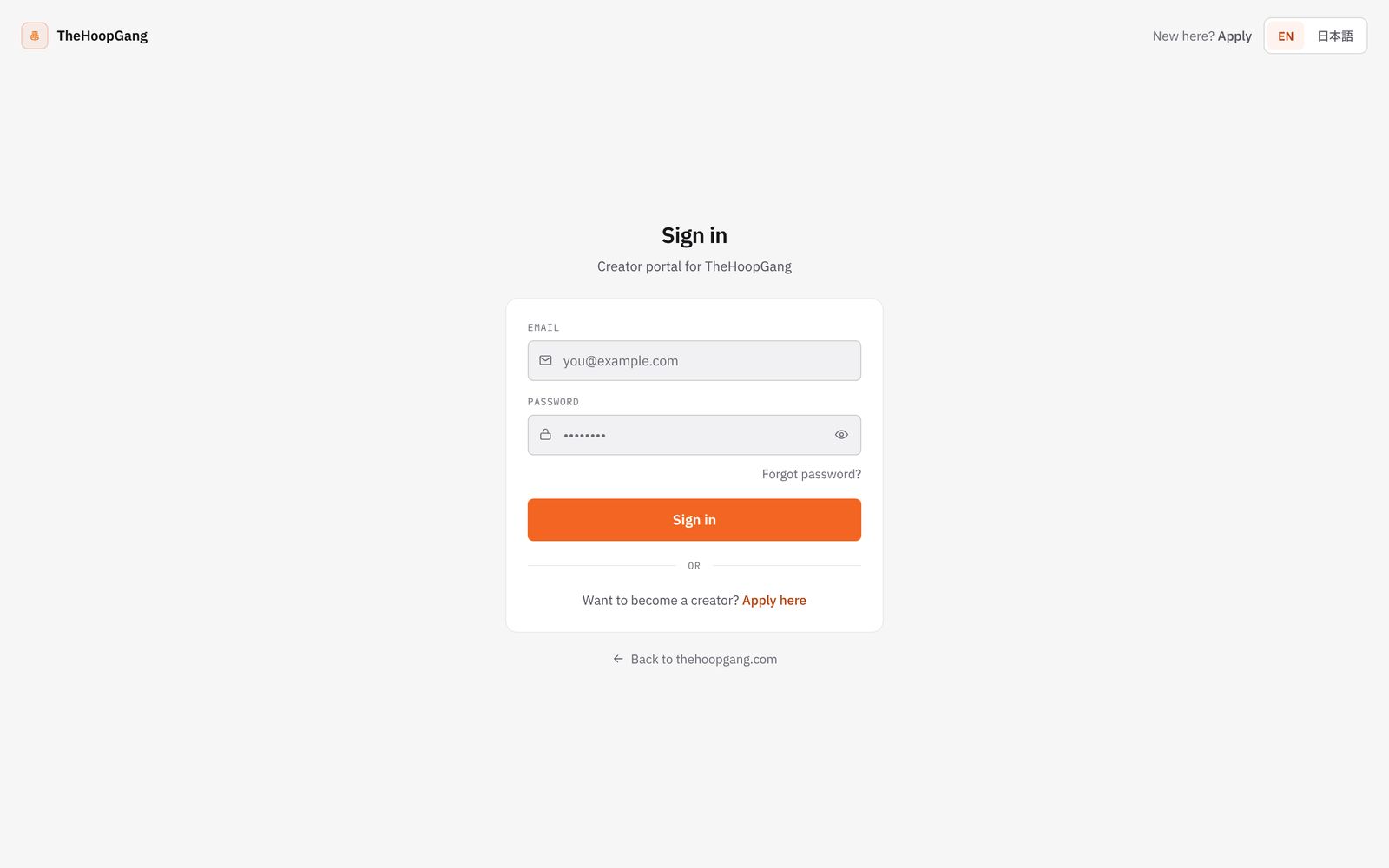
I have built several portals with very different users: Guardian MindCare, a therapy practice platform with separate portals for therapists, supervisors, trainees, clients and admins; the TheHoopGang creator portal, which manages 50+ creators; and FieldOps, a job scheduling app with Outlook Calendar sync. This guide covers what a portal needs and the order I build it in.
What is a client portal, and when do you need a custom one?
A client portal is a logged-in area where each client sees only their own records, files, messages and status, and you need a custom one when standard tools do not fit your roles or workflow.
Plenty of businesses are well served by an off-the-shelf portal inside their accounting, legal, or practice management software. If your workflow is standard and your software already has a portal, use it. It will be cheaper and better supported than anything custom.
A custom portal earns its cost in a few situations:
- You have more than two kinds of user, each needing a different view, as in a practice with supervisors and trainees.
- Your data is specific to your business, such as creator applications with product sizes, shipping and content.
- You need the portal to connect to tools you already use, like Shopify, Outlook or your own database.
- The portal is the product, as in a SaaS you sell to other businesses.
Artistic Printing, a commercial printer I worked with, is a good example of a middle path: quote management and client intake built to match how the shop actually takes jobs, instead of bending the shop around a generic form.
How should roles and permissions work?
Define every role and what it may read or change before designing screens, then enforce those rules on the server or in database rules.
For Guardian MindCare, the starting point was a permissions table: five roles down one side, every kind of record across the top, each cell marked read, write or nothing. With therapists, supervisors, trainees, clients and admins, the question of who can see what decides almost everything else. Once that table exists, screens follow from it, and so do the access rules.
In a Firebase project, the usual pattern is to attach a role to each user as a custom claim on their auth token, set only from a trusted server, then write security rules that compare that role and the user's ID against each record. Firebase caps the claims payload at 1,000 bytes, so store a role, not a whole profile. Claims reach the client when a new ID token is issued, so a role change may not apply until the user's token refreshes.
OWASP's authorization guidance sums up the rules I follow: deny by default, never rely on client-side checks, and give each user the least privilege they need. "Roles and permissions in a SaaS app: a practical guide for founders" goes deeper on modelling roles.
How do you handle documents and file uploads?
Store files privately, generate file names on the server, allow only the file types you need, and hand out short-lived download links only to users allowed to see them.
Documents are where portals leak. A common mistake is putting uploads in a public bucket with guessable names, so anyone with the link can read any client's file. A safer setup:
- A private storage bucket with rules that tie each file path to its owner or assigned staff.
- File names generated by the server, such as a random ID, instead of the client's original file name.
- An allow list of types, for example PDF, JPG and PNG, checked by content, not only by extension.
- A size limit per upload.
- Downloads through signed URLs that expire, created only after an access check.
OWASP's file upload guidance covers the same ground, including not trusting the Content-Type the browser sends. Also record who uploaded each file and when. When a client says "I sent that last week", the record settles it in seconds.
Should the portal include messaging?
Include messaging only if conversations about a record need to live next to that record, otherwise email notifications with a link back to the portal are enough.
Building chat sounds simple and is not. Real-time updates, unread counts, attachments, notifications and moderation all add up. For many portals the better first version is a comment thread on each request or job, plus an email when someone replies. The client clicks the link, signs in and sees the full history in context.
If you do build messaging, decide early:
- Who can message whom. In a practice with trainees, not every role should message every client.
- Whether staff can see each other's threads, for cover during absences.
- How long messages are kept and who can delete them.
- What triggers an email or text, so people are not notified for every keystroke.
For sending notifications reliably, "Resend vs SendGrid vs Postmark: transactional email for your AI-built app" compares the main options.
How does scheduling fit into a client portal?
Add scheduling when clients book or reschedule with you often, and connect it to the calendar your team already lives in.
A portal booking feature that does not sync with staff calendars creates double bookings. FieldOps, a job scheduling app I built for field teams, syncs with Outlook Calendar for exactly that reason: the schedule has to match what staff see on their phones.
Choices to make:
- Embed an existing booking tool or build booking into the portal. "Online booking for your website: embed a tool or build it custom?" covers the trade-off.
- Whether clients can reschedule or cancel themselves, and up to how close to the appointment.
- Time zones, stored in UTC with the location's zone attached.
- Reminders by email or text, which cut no-shows more than any other feature.
Two-way sync is the part that takes time. Reading busy times from a calendar is fairly simple, but writing bookings back, handling edits made directly in Outlook or Google Calendar, and recovering when a sync token expires all need careful testing. If clients only request times and staff confirm them, a one-way sync is often enough for the first version.
What status tracking should clients see?
Clients should see one clear status for each request, from received to done, because a visible status answers most of the messages a portal is meant to replace.
In the TheHoopGang creator portal, each creator moves through one pipeline: application received, approved, shipped, delivered, content completed. The creator's dashboard and the team's dashboard read the same record, so they cannot disagree. With tracking numbers and statuses visible to creators, a creator can check where their package is without messaging the team.
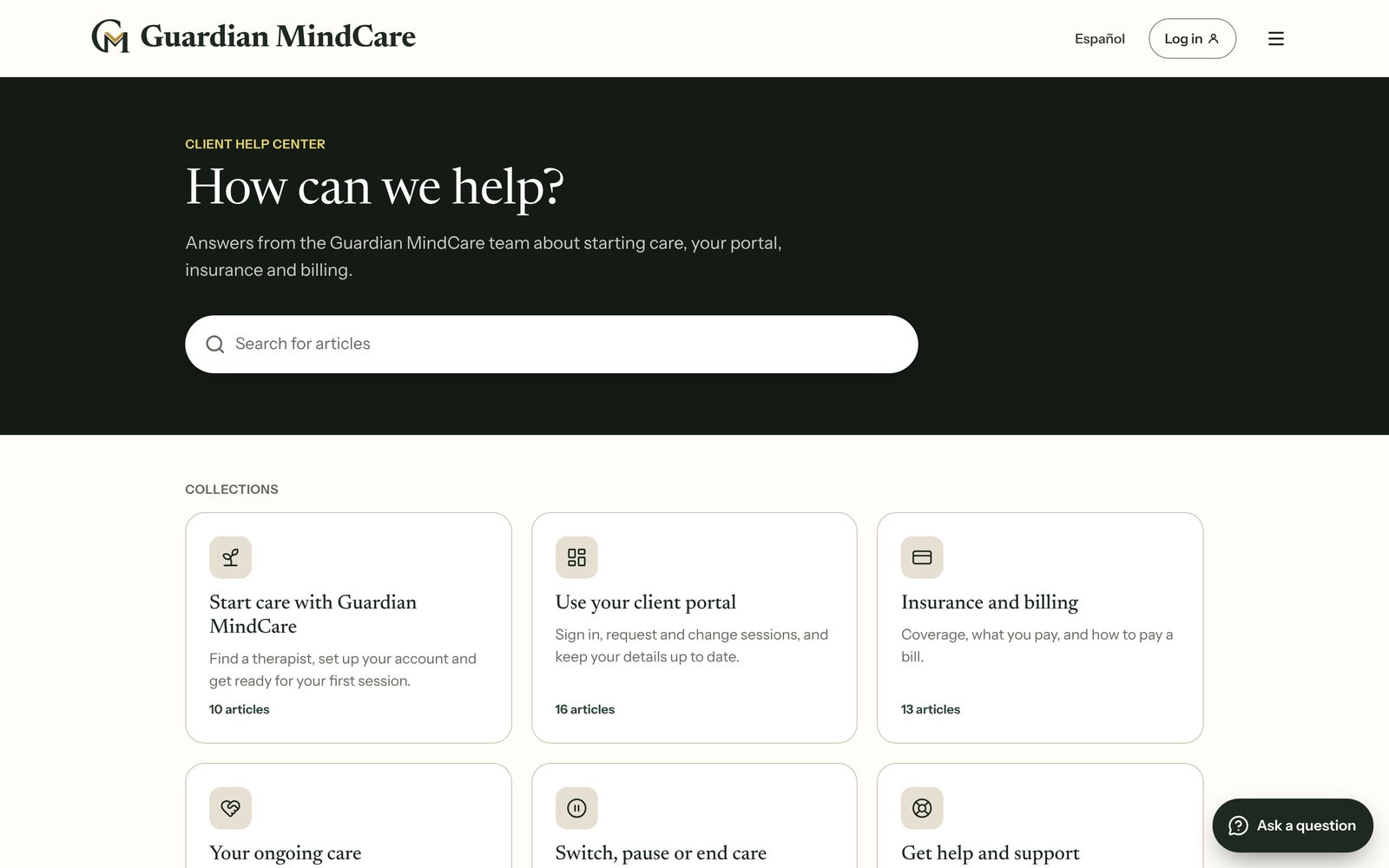
A self-serve help center works alongside status. Guardian MindCare has a client help center with searchable article collections, so common questions have an answer before anyone writes in.
What security does a client portal need?
At minimum: strong sign-in, server-side access checks, private file storage, audit logs for sensitive actions, and tests that sign in as every role.
A checklist I use:
- Sign-in through a proven provider, with email verification and optional two-factor authentication for staff.
- Access rules enforced in the database or on the server for every query.
- Admin actions, such as role changes and deletions, logged with who did them.
- Sessions that expire, and a way to revoke a departed staff member's access immediately.
- One test account per role, used to try to open every other role's pages and records.
In healthcare, the HIPAA Security Rule sets standards for protecting electronic health information, and any vendor storing it may need a business associate agreement. A health practice should get compliance advice before putting health information in a portal. This is general information, not legal advice. I also covered a narrower question in "Are website contact forms HIPAA compliant? What health practices need to know".
What should the first version of a portal include?
The first version should cover the one workflow that generates the most emails today, with sign-in, roles and status, and leave everything else for later.
It is tempting to list every feature a portal could have and build them all at once. That makes the first release slow and expensive, and half the features turn out not to matter. A better way is to look at your inbox for the last month and count which questions came up most. If most are about status, the first version is sign-in plus a status page. If most are about files, it is sign-in plus secure uploads.
A sensible first release usually includes:
- Sign-in with email verification and password reset.
- The permissions table enforced for every role you have today.
- One core screen per role, such as the client's requests and the staff member's queue.
- Status for each request, plus an email when it changes.
- An admin view to add users and change roles.
Messaging, scheduling, payments and reports come next, in the order your clients ask for them. Launch to a few friendly clients first and watch what they try to do.
A worked example, and what it costs
This is an illustration, not a client. A bookkeeping firm with three accountants and 120 clients wants a portal. Clients upload receipts and statements, see which month is closed, message their accountant and book a quarterly review.
The permissions table has three roles: client, accountant and admin. Accountants see only assigned clients. Uploads go to a private bucket by client and month. Each month has a status: waiting on documents, in progress, closed. Messaging starts as comments on each month with email notifications. Booking syncs with the accountants' calendars.
Based on my packages, a first version covering one workflow, uploads and monthly status, could start from $250. A SaaS MVP with auth, dashboard, database and payments starts from $1,200. A full multi-role platform with admin tools and integrations like calendar sync starts from $3,000, which is where this example lands.
The bottom line
Build a client portal around its permissions table, not its screens. Enforce access on the server, keep files private, show every client a clear status, and add messaging and scheduling only where they replace work your team already does. Use an off-the-shelf portal if your workflow is standard. If your roles, data or integrations are specific to your business, my SaaS MVP service page explains how I scope a custom portal.
Questions, answered in one line
What features does a client portal need?
Most portals need secure sign-in, a dashboard of the client's own records, document upload and download, status tracking and notifications, with messaging and scheduling added when they replace existing email work.
Should I build a client portal or use an off-the-shelf tool?
Use an off-the-shelf tool when your workflow matches it, and build custom when you have several roles, unusual data or integrations that standard tools force you to work around.
How do I keep client data private in a portal?
Enforce access rules on the server or in the database so each user can read only records they own or are assigned to, and test by signing in as each role and trying to open other users' records.
Is a client portal HIPAA compliant?
Only if it is built and operated with the required safeguards and vendor agreements, so a health practice should get compliance advice before storing health information, and this is general information, not legal advice.
How much does a custom client portal cost?
Thomas Osayi builds a SaaS MVP with auth, dashboard, database and payments from $1,200, and a full multi-role platform with admin tools and integrations from $3,000.
Sources
Related articles
- How to scope an MVP: one workflow, three lists and the cuts that matter
- Multi-tenant SaaS with Firestore: data layout, security rules and custom claims
- Web app vs mobile app for your MVP: which to build first
- PWA vs native app in 2026: what a web app can do on iPhone now
SaaS MVP and full-stack web app development
I build SaaS MVPs and full-stack web apps in Next.js, TypeScript and Firebase or Postgres: auth, dashboards, payments, roles and admin tools. Founder of SQWAD.
See the service